
Qodo AI: Deep Dive into AI Code Review for GitHub, GitLab, and Bitbucket
Deeply accurate guide to Qodo AI for GitHub, GitLab, and Bitbucket. Covers setup, security, advanced configuration, and when it's the right choice for your team. See the full setup guide.
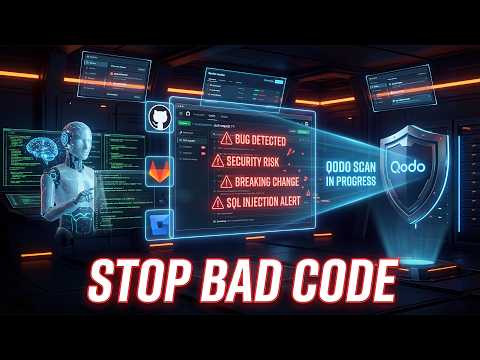
#🛡️ What Is Qodo AI?
Qodo AI is a cloud-based service designed to automate code review processes across popular Version Control Systems (VCS) like GitHub, GitLab, and Bitbucket. It leverages artificial intelligence to analyze pull requests and merge requests, providing actionable feedback on code quality, potential bugs, adherence to best practices, and performance issues before code merges. Qodo AI streamlines the code review workflow by offering automated, intelligent feedback directly within your existing SCM platform.
#📋 At a Glance
- Difficulty: Advanced
- Time required: 30-60 minutes for initial setup and basic configuration, several hours for advanced rule customization and integration testing.
- Prerequisites:
- Active GitHub, GitLab, or Bitbucket account with administrative permissions for repository integration.
- A Qodo AI account (trial or paid subscription).
- Familiarity with Git workflows (pull requests, merge requests).
- Basic understanding of API tokens and OAuth permissions.
- Works on: Any development environment compatible with GitHub, GitLab, or Bitbucket (cloud or self-managed enterprise versions, depending on Qodo AI's support).
#How Does Qodo AI Integrate with Version Control Systems?
Qodo AI integrates with your Version Control System (VCS) by acting as an OAuth application or a dedicated app installation, requiring specific permissions to read code changes and post comments on pull/merge requests. This integration typically involves a one-time authorization process at the organization or repository level, establishing a secure communication channel for automated code analysis.
Qodo AI's integration model is designed for minimal disruption to existing developer workflows. Instead of requiring a separate client or complex CI/CD pipeline modifications, it connects directly to your SCM platform's API. This allows Qodo AI to subscribe to events (like new pull requests or updates to existing ones) and then post its review comments directly on the relevant lines of code or as a summary comment. The underlying mechanism relies on OAuth 2.0 for authorization, ensuring that Qodo AI only has the access explicitly granted by an administrator and does not store your SCM credentials directly. For self-hosted SCM instances, Qodo AI may offer specific integration methods, potentially involving webhook configurations and IP allow-listing for outbound communication.
1. What: Understand the Integration Model
Before proceeding with setup, it's crucial to understand how Qodo AI connects to your SCM to ensure proper security and permissions. Qodo AI uses OAuth (Open Authorization) to request access to your SCM account, granting it specific permissions to read repository data and write comments.
Why: Understanding the OAuth scope is critical for maintaining security and adhering to the principle of least privilege. Granting overly broad permissions can expose your repositories to unnecessary risk. Qodo AI needs access to read your code changes and post comments, but it generally does not require write access to your code itself, nor administrative access to your entire SCM organization.
How:
Review Qodo AI's documentation for the exact OAuth scopes it requests for GitHub, GitLab, or Bitbucket. For example, a typical GitHub integration might request repo (for private repos) and pull_request scopes.
Navigate to your SCM's OAuth applications settings or the Qodo AI dashboard's integration section to view these permissions before authorizing.
Verify: Ensure the requested permissions are clearly documented by Qodo AI and align with the minimum necessary access for code review. If Qodo AI requests broader permissions than expected (e.g., direct code push access), investigate why or reconsider the integration.
2. What: Authorize Qodo AI with Your SCM
You must authorize Qodo AI to access your GitHub, GitLab, or Bitbucket account, typically at the organization or workspace level. This step establishes the necessary permissions for Qodo AI to fetch pull request data and post review comments.
Why: This is the foundational step for Qodo AI to interact with your repositories. Without proper authorization, Qodo AI cannot access your code changes or provide automated reviews. Authorizing at the organization level simplifies management for multiple repositories but requires careful consideration of the permissions granted.
How:
- Log in to Qodo AI: Access your Qodo AI dashboard at
https://qodo.ai/login. - Navigate to Integrations: Look for a "Integrations" or "Connect VCS" section, often found in the account settings or organization settings.
- Select Your SCM: Choose GitHub, GitLab, or Bitbucket from the available options.
- Initiate Authorization: Click the "Connect" or "Authorize" button. You will be redirected to your SCM's authorization page.
- Review and Grant Permissions: On the SCM's authorization page, carefully review the requested permissions. For GitHub, this might involve selecting specific organizations or repositories for Qodo AI to access. For GitLab, it might be at the group or project level.
- Complete Authorization: Confirm the authorization. You will be redirected back to the Qodo AI dashboard.
Example for GitHub (UI actions):
- Go to
https://qodo.ai/integrations. - Click "Connect GitHub".
- On GitHub's authorization page, select "Grant access to X organization" or "Only select repositories" (recommended for granular control).
- If choosing "Only select repositories," explicitly select the repositories where you want Qodo AI to operate.
Verify:
✅ You should see a confirmation message in Qodo AI indicating successful integration (e.g., "GitHub Connected" or "GitLab Integrated"). You can also go to your SCM's settings (e.g., GitHub > Settings > Applications > Authorized OAuth Apps) to confirm Qodo AI is listed and review its granted permissions.
3. What: Install Qodo AI as a GitHub App (Recommended for GitHub)
For GitHub, installing Qodo AI as a GitHub App offers more granular control over permissions and events compared to a general OAuth application. This method is generally preferred for production environments due to its enhanced security model.
Why: GitHub Apps provide fine-grained permissions, allowing you to specify exactly what types of repository access (e.g., read pull requests, write pull request comments) Qodo AI has, and which repositories it can access. This minimizes the attack surface compared to broad OAuth token access.
How:
- Access Qodo AI Integrations: Log into Qodo AI and navigate to the "Integrations" section.
- Select GitHub App Installation: Look for an option specifically for "Install GitHub App" if available.
- GitHub Redirection: You will be redirected to GitHub's app installation page.
- Configure Installation:
- Choose the organization or user account where you want to install the app.
- Select "Only select repositories" under "Repository access" and explicitly choose the repositories where Qodo AI should be active. This is a critical security step.
- Review the permissions requested by the app (e.g., "Read access to pull requests," "Write access to pull request reviews").
- Install the App: Click "Install & Authorize."
Verify:
✅ Upon successful installation, you should be redirected back to Qodo AI with a confirmation. In GitHub, go to
Settings > Applications > GitHub Appsand ensure Qodo AI is listed with the correct permissions and installed on the designated repositories. Check that the app is configured to receivepull_requestevents.
#How Do I Configure Qodo AI for Specific Repositories?
Configuring Qodo AI for specific repositories involves enabling the service, defining which branches or pull requests trigger reviews, and setting up ignore patterns for files or directories that shouldn't be analyzed. This ensures that Qodo AI focuses its efforts on relevant code changes, optimizing performance and reducing irrelevant feedback.
Once Qodo AI is authorized with your SCM, you need to enable it for the specific repositories where you want automated code reviews. This process usually involves selecting repositories from a list within the Qodo AI dashboard and then defining the scope of its operation. Key configurations include specifying target branches (e.g., main, develop), setting thresholds for review comments (e.g., only critical issues), and defining file paths to exclude from analysis (e.g., node_modules/, dist/, .idea/). Careful configuration prevents Qodo AI from reviewing generated code, third-party libraries, or non-code assets, which can lead to noise and unnecessary costs.
1. What: Enable Qodo AI for Selected Repositories
Activate Qodo AI for the specific repositories you want to be automatically reviewed. This is typically done through a toggle or selection within the Qodo AI dashboard.
Why: You might not want AI code review on all repositories (e.g., archived projects, experimental branches, or repositories with highly sensitive code that you prefer to keep entirely off third-party services). Explicitly enabling it ensures controlled deployment.
How:
- Access Qodo AI Dashboard: Log in to your Qodo AI account.
- Navigate to Repositories/Projects: Find a section labeled "Repositories," "Projects," or similar, which lists the SCM repositories Qodo AI has access to.
- Enable Review: For each repository you wish to enable, locate an "Enable" button or a toggle switch. Click/toggle it to activate Qodo AI for that repository.
Example (UI actions):
- In Qodo AI, go to "My Projects".
- You'll see a list of repositories from your connected GitHub/GitLab/Bitbucket account.
- Next to
my-awesome-repo, click the "Enable" button or toggle the switch to "On".
Verify:
✅ The repository should now show as "Enabled" or "Active" in the Qodo AI dashboard. Create a test pull request in the enabled repository. Qodo AI should post its first review comment within a few minutes (latency can vary).
2. What: Configure Branch Filtering and Trigger Events
Specify which branches Qodo AI should monitor and what events (e.g., pull_request_opened, pull_request_updated) should trigger a review. This prevents unnecessary reviews on feature branches that are not yet ready or on trivial commits.
Why: Limiting reviews to specific target branches (like main, develop, or release/*) ensures that Qodo AI focuses on code destined for integration, where quality gates are most critical. Filtering trigger events can reduce API calls and processing time, which might be relevant for cost optimization.
How:
- Access Repository Settings: In the Qodo AI dashboard, navigate to the specific settings for an enabled repository.
- Locate Branch/Event Configuration: Find sections like "Target Branches," "Branches to Monitor," or "Review Triggers."
- Define Rules:
- Target Branches: Enter branch names or patterns (e.g.,
main,develop,feature/*). Use glob patterns if supported (e.g.,^main$,^(develop|release/.*)$). - Trigger Events: Select relevant events. Common choices are
pull_request.openedandpull_request.synchronize(when new commits are pushed to an open PR).
- Target Branches: Enter branch names or patterns (e.g.,
Example for a main and develop branch (UI actions):
- In Qodo AI, select
my-web-appfrom "My Projects" and go to "Settings". - Under "Branches to Review", add
mainanddevelop. You might also addrelease/*for release branches. - Under "Trigger Events", ensure "On Pull Request Open" and "On Pull Request Update" are checked.
Verify:
✅ Create a pull request targeting a non-configured branch (e.g.,
experimental). Qodo AI should not post a review. Create a pull request targeting a configured branch (e.g.,develop). Qodo AI should post a review.
3. What: Define Ignore Paths and File Types
Configure Qodo AI to ignore specific file paths, directories, or file types from its review process. This is crucial for avoiding irrelevant feedback on generated code, configuration files, or third-party dependencies.
Why: Reviewing files like package-lock.json, compiled assets (.min.js, .css), documentation (.md), or .env files is generally unproductive and can consume review credits unnecessarily. Ignoring these paths improves the signal-to-noise ratio of Qodo AI's feedback.
How:
- Access Repository Settings: In Qodo AI, go to the settings for your chosen repository.
- Locate Ignore Configuration: Find a section like "Ignore Paths," "Exclude Files," or "File Filters."
- Add Patterns: Enter glob patterns or specific file paths/extensions to ignore.
- Common ignores:
node_modules/,dist/,.git/,.vscode/,*.min.js,*.map,package-lock.json,yarn.lock,.env,README.md. - Each pattern should typically be on a new line or separated by a comma, depending on Qodo AI's UI.
- Common ignores:
Example ignore patterns:
node_modules/
dist/
build/
*.min.js
*.map
package-lock.json
yarn.lock
.env
.DS_Store
docs/
Verify:
✅ Push a change to an ignored file within a pull request. Qodo AI should not comment on changes within that file/directory. Push a change to a non-ignored file. Qodo AI should review it.
#What Are the Key Configuration Options for Qodo AI Code Reviews?
Key configuration options for Qodo AI code reviews include setting severity thresholds, customizing review rules, and potentially integrating with custom prompts or guidelines. These settings allow teams to tailor Qodo AI's feedback to their specific coding standards, project requirements, and desired level of strictness, ensuring relevant and actionable suggestions.
Beyond basic repository activation, Qodo AI offers deeper customization to align with your team's specific needs. This often involves defining what constitutes a "critical" issue versus a "suggestion," enabling or disabling specific categories of checks (e.g., performance, security, style), and even providing custom instructions or examples to guide the AI's review process. Some advanced platforms allow for integration with external knowledge bases or style guides, ensuring the AI's recommendations are consistent with internal documentation. Carefully tuning these options can transform Qodo AI from a generic linter into a highly specialized code review assistant.
1. What: Adjust Review Severity and Categories
Configure Qodo AI to focus on specific types of issues (e.g., security, performance, maintainability) and set the minimum severity level for comments. This helps manage the volume and relevance of automated feedback.
Why: Different projects or teams have varying priorities. A critical bug in a production service demands immediate attention, while a minor stylistic suggestion in an internal tool might be lower priority. Adjusting severity and categories ensures Qodo AI's feedback aligns with your team's focus, preventing alert fatigue.
How:
- Access Repository Settings: In the Qodo AI dashboard, go to the settings for your enabled repository.
- Locate Review Rules/Categories: Find sections like "Review Rules," "Issue Categories," or "Severity Thresholds."
- Configure Preferences:
- Severity: Set the minimum severity for comments (e.g., "Critical Only," "High and Above," "All Suggestions").
- Categories: Enable or disable specific categories of checks (e.g., "Security Vulnerabilities," "Performance Optimizations," "Code Style," "Best Practices," "Potential Bugs").
Example (UI actions):
- For
my-critical-service, set "Minimum Severity" to "High". - Enable "Security Vulnerabilities" and "Potential Bugs", but disable "Code Style" if you use a separate linter.
Verify:
✅ Create a pull request with a known low-severity issue (e.g., a minor style violation) and a known high-severity issue (e.g., a potential null pointer dereference). Qodo AI should only comment on the high-severity issue if configured appropriately.
2. What: Implement Custom Review Rules or Prompts
If Qodo AI supports it, define custom review rules or provide specific instructions/prompts to guide the AI's review behavior. This allows for highly tailored feedback that aligns with unique project conventions or domain-specific knowledge.
Why: Generic AI models may not understand your team's specific architectural patterns, internal libraries, or domain-specific best practices. Custom rules or prompts allow you to inject this context, making the AI's suggestions more accurate and relevant. This is a key differentiator for advanced usage.
How:
- Access Advanced Settings: In Qodo AI, navigate to the advanced configuration section for your repository.
- Locate Custom Rules/Prompts: Look for fields labeled "Custom Rules," "AI Prompt Overrides," or "Guidelines."
- Input Customizations:
- Rule Definitions: If Qodo AI uses a rule-based system (e.g., YAML or JSON for defining patterns), write your custom rules.
- Prompt Engineering: If Qodo AI allows prompt injection, provide a clear, concise natural language prompt describing your desired review criteria or specific areas of focus.
- Example Prompt: "Review this Python code for adherence to PEP 8, efficient database query patterns, and potential race conditions in concurrent operations. Pay special attention to error handling in API endpoints."
Example Custom Rule (conceptual, syntax will vary by Qodo AI's implementation):
{
  "ruleName": "NoDirectDatabaseAccessInControllers",
  "description": "Controllers should not directly interact with the database; use service layers.",
  "language": "python",
  "pattern": "db\\.(query|execute)",
  "scope": "app/controllers/",
  "severity": "High",
  "suggestion": "Move database operations into a dedicated service layer."
}
Verify:
✅ Create a pull request with code that violates your custom rule or prompt guidance. Qodo AI should detect this and provide feedback based on your custom input. Experiment with varying prompt details to fine-tune the AI's understanding.
3. What: Integrate with Existing CI/CD Pipelines (Optional)
For advanced workflows, integrate Qodo AI's review outcomes into your Continuous Integration/Continuous Deployment (CI/CD) pipeline. This can include failing builds based on high-severity issues or gating merges until Qodo AI's review is complete.
Why: Integrating with CI/CD transforms Qodo AI from a suggestion tool into a mandatory quality gate. This ensures that critical issues are addressed before deployment, enforcing code quality standards automatically and preventing regressions.
How:
- Check Qodo AI API/Webhooks: Review Qodo AI's documentation for API endpoints or webhook capabilities that expose review status.
- Configure CI/CD Job: In your
gitlab-ci.yml,.github/workflows/*.yml, orbitbucket-pipelines.ymlfile, add a step that:- Waits for Qodo AI's review to complete (if an API is available).
- Parses Qodo AI's output (e.g., JSON report) for critical issues.
- Fails the build if predefined conditions are met (e.g.,
severity: criticalissues found). - Alternatively, some Qodo AI integrations might offer direct CI/CD actions or GitHub Checks API integration.
Example GitHub Actions snippet (conceptual):
name: Qodo AI Code Review Check
on:
  pull_request:
    types: [opened, synchronize]

jobs:
  qodo_review_check:
    runs-on: ubuntu-latest
    steps:
      - name: Checkout code
        uses: actions/checkout@v4

      - name: Wait for Qodo AI review and check status
        id: qodo_status
        run: |
          # Placeholder: In a real scenario, this would call Qodo AI's API
          # to get the review status or check GitHub Checks API.
          # For demonstration, assume a script 'check-qodo-status.sh' exists
          # that returns 'success', 'failure', or 'pending'.
          STATUS=$(./check-qodo-status.sh ${{ github.event.pull_request.head.sha }})
          echo "Qodo AI review status: $STATUS"
          if [ "$STATUS" == "failure" ]; then
            echo "Qodo AI review failed due to critical issues."
            exit 1
          fi
          echo "qodo_review_status=$STATUS" >> $GITHUB_OUTPUT
        env:
          QODO_API_KEY: ${{ secrets.QODO_API_KEY }}

      - name: Fail build if Qodo AI review is not successful
        if: steps.qodo_status.outputs.qodo_review_status != 'success'
        run: |
          echo "Qodo AI review did not pass successfully. Please address feedback."
          exit 1
Verify:
✅ Create a pull request with code that triggers a "failure" condition in Qodo AI (e.g., a critical issue). Your CI/CD pipeline should fail at the Qodo AI check step. Create a clean pull request. The CI/CD pipeline should pass the Qodo AI check.
#When Is Qodo AI NOT the Right Choice for Code Review?
While Qodo AI offers significant benefits in automating code review, it is not the ideal solution for all scenarios, particularly for projects with extreme data privacy requirements, stringent compliance regulations, or highly idiosyncratic coding standards that cannot be effectively captured by AI rules. Furthermore, for very small teams or open-source projects with limited budgets, the cost-benefit ratio might not be favorable compared to manual reviews or free tooling.
The decision to adopt a third-party AI code review tool like Qodo AI should involve a thorough assessment of its capabilities against your specific project constraints and organizational policies.
1. What: Data Privacy and Residency Concerns
Qodo AI is not suitable for projects where code cannot leave your internal infrastructure due to extreme data privacy requirements, legal mandates (e.g., GDPR, HIPAA, ITAR), or internal security policies. This includes highly sensitive intellectual property or classified projects.
Why: Cloud-based AI services, by their nature, involve sending your source code to external servers for processing. Even with strong security measures and data encryption, the fact that your code resides on a third-party's infrastructure (even temporarily) can be a non-starter for certain organizations or projects. Data residency laws often dictate that sensitive data must remain within specific geographical boundaries, which a general-purpose cloud AI service might not guarantee.
How:
- Alternative: For such scenarios, explore self-hosted LLMs (e.g., running models like
NousCoder-14BorOpenClawlocally with Ollama) combined with custom Git hooks or local scripting. This ensures your code never leaves your controlled environment. - Process: Implement a local Git hook that triggers a local LLM to review new commits or pull requests before they are pushed to the remote SCM or merged.
Example of a conceptual local Git hook (.git/hooks/pre-receive or pre-commit):
#!/bin/bash
# This is a highly simplified conceptual example.
# A real implementation would involve more robust error handling and LLM interaction.

# Get the changes being pushed (for pre-receive) or committed (for pre-commit)
# For pre-receive, compare new and old branches:
# while read oldrev newrev refname; do
#   git diff --name-only $oldrev $newrev
# done | xargs -I {} cat {} | ollama run codellama "Review this code for critical issues: \`\`\`{}\`\`\`"

# For pre-commit, review staged changes:
STAGED_FILES=$(git diff --cached --name-only --diff-filter=ACM)

if [ -n "$STAGED_FILES" ]; then
  echo "Running local AI code review on staged files..."
  for FILE in $STAGED_FILES; do
    echo "Reviewing $FILE..."
    FILE_CONTENT=$(cat "$FILE")

    # Use Ollama to run a local code LLM (e.g., codellama)
    # Ensure Ollama is running and codellama is downloaded
    REVIEW_OUTPUT=$(ollama run codellama "Review this $FILE for potential bugs and best practices. Code: \`\`\`$FILE_CONTENT\`\`\`" --format json)

    # Parse the output and check for critical issues
    # This parsing logic would be more complex in a real script
    if echo "$REVIEW_OUTPUT" | grep -q "CRITICAL_ISSUE"; then
      echo "CRITICAL ISSUE DETECTED in $FILE by local AI review. Commit rejected."
      echo "$REVIEW_OUTPUT"
      exit 1
    fi
  done
  echo "Local AI code review passed."
fi

exit 0
Verification: Ensure your local LLM setup is functional and that the hook correctly identifies and flags issues without sending code externally.
2. What: Cost-Prohibitive for Large-Scale or Budget-Constrained Projects
Qodo AI, like many SaaS solutions, operates on a pricing model that can become cost-prohibitive for very large teams, high-volume repositories, or open-source projects with limited funding. The cost often scales with usage (e.g., number of reviews, lines of code analyzed, number of users).
Why: While the per-review cost might seem low, it can quickly accumulate across hundreds or thousands of pull requests per month, especially in active development environments. For projects where budget is a primary constraint, or where the value added by automated reviews doesn't outweigh the financial investment, alternative solutions are more appropriate.
How:
- Alternative: Consider open-source static analysis tools (e.g., SonarQube, ESLint, Pylint, Stylelint) integrated into your CI/CD pipeline. These tools run on your infrastructure, incurring only infrastructure costs, and can enforce many code quality standards without external AI processing fees.
- Process:
- Install the chosen static analysis tool on a CI/CD runner.
- Configure it with your team's rules.
- Add a step in your CI/CD pipeline to run the tool and fail the build if issues are found.
Example package.json script for ESLint:
{
  "name": "my-js-project",
  "version": "1.0.0",
  "scripts": {
    "lint": "eslint . --ext .js,.jsx,.ts,.tsx"
  },
  "devDependencies": {
    "eslint": "^8.0.0",
    "@typescript-eslint/eslint-plugin": "^5.0.0",
    "@typescript-eslint/parser": "^5.0.0"
  }
}
Example .gitlab-ci.yml snippet for ESLint:
lint_job:
  image: node:18
  stage: test
  script:
    - npm install
    - npm run lint
  allow_failure: false # Fail the pipeline if linting issues are found
Verification: Ensure your CI/CD job correctly executes the static analysis tool and reports/fails on configured issues.
3. What: Highly Niche or Idiosyncratic Coding Standards
Qodo AI might struggle with highly niche programming languages, esoteric frameworks, or extremely idiosyncratic coding standards that are not widely represented in its training data or configurable rule sets. This can lead to irrelevant suggestions or missed critical issues.
Why: AI models are trained on vast datasets of public code, which typically reflect common languages, frameworks, and best practices. If your project uses a proprietary language, a very old or obscure framework, or has unique internal conventions that deviate significantly from industry norms, a general-purpose AI might not provide valuable or accurate feedback. Custom rules can help, but their effectiveness depends on Qodo AI's flexibility.
How:
- Alternative: Rely on peer code reviews by experienced human developers who understand the specific nuances of your codebase and domain. Supplement with custom linters or static analysis plugins specifically developed for your niche language/framework.
- Process:
- Maintain a comprehensive internal style guide and best practices document.
- Conduct thorough manual code reviews, focusing on the human understanding of context and nuance.
- If possible, develop custom checks using existing static analysis frameworks (e.g., extending ESLint with custom rules for a specific JS framework, or writing custom checks for a proprietary language if SDKs are available).
Verification: Regular internal audits and human reviews confirm that niche standards are being met, and that the chosen tools (if any) are correctly configured for specific project needs.
#Frequently Asked Questions
What are the common pitfalls when integrating Qodo AI with my SCM? Common pitfalls include over-permissioning the SCM integration, neglecting to configure specific review rules, and not setting up appropriate ignore patterns for generated code or non-critical files. Failure to understand Qodo AI's pricing model for large teams can also lead to unexpected costs.
Can Qodo AI be used for security vulnerability detection? While Qodo AI can identify some common security anti-patterns and suggest improvements, it is primarily a code quality and best practices tool. It should not replace dedicated static application security testing (SAST) or dynamic application security testing (DAST) tools for comprehensive vulnerability detection. Its capabilities are limited to pattern recognition and contextual understanding, not deep security analysis.
How does Qodo AI handle private repositories and sensitive code? Qodo AI processes code from private repositories by requiring explicit authorization via SCM OAuth or personal access tokens. It is crucial to understand Qodo AI's data handling policies and data residency for sensitive code. For highly regulated environments or extreme privacy concerns, a self-hosted or local LLM solution might be preferable to ensure code never leaves your infrastructure.
#Quick Verification Checklist
- Qodo AI is successfully authorized with your SCM (GitHub, GitLab, or Bitbucket).
- Qodo AI is enabled for at least one target repository.
- A test pull request to an enabled repository receives automated review comments from Qodo AI.
- Branch filtering is correctly applied, preventing reviews on non-target branches.
- Configured ignore paths prevent Qodo AI from reviewing specified files or directories.
- Review severity and category settings align with your team's priorities.
#Related Reading
Last updated: July 29, 2024
RESPECTS
Submit your respect if this protocol was helpful.
COMMUNICATIONS
No communications recorded in this log.

Meet the Author
Harit
Editor-in-Chief at Lazy Tech Talk. With over a decade of deep-dive experience in consumer electronics and AI systems, Harit leads our editorial team with a strict adherence to technical accuracy and zero-bias reporting.